


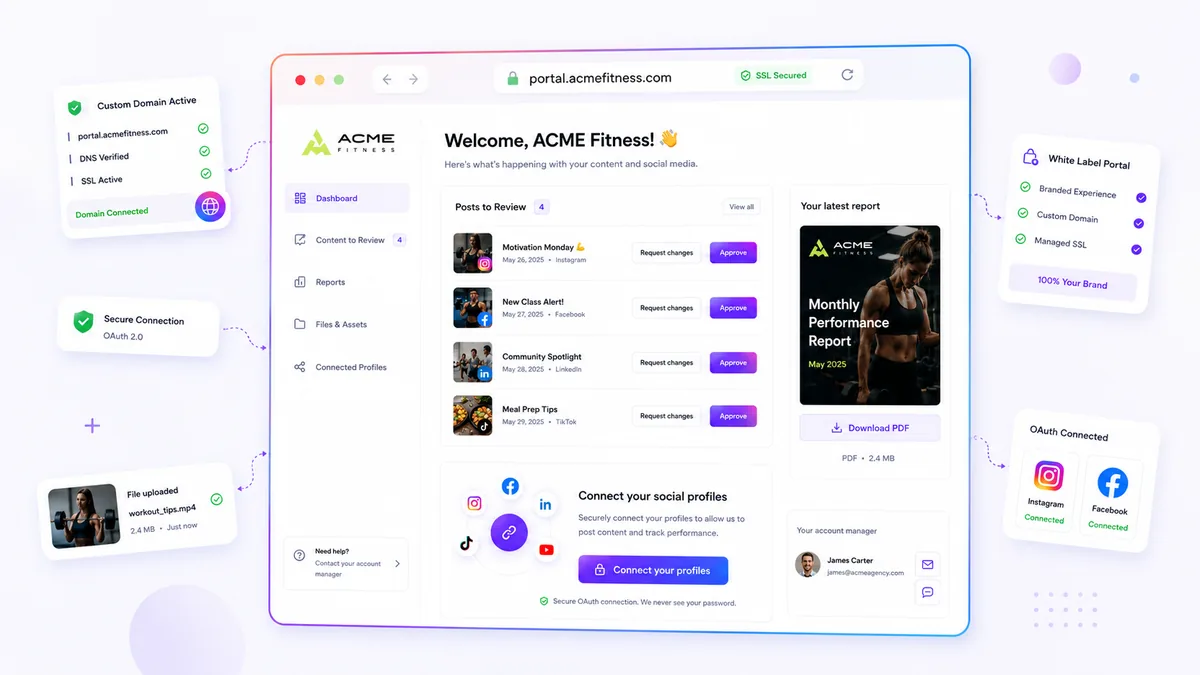
When a client portal fails to load or denies access, skip the browser clearing and focus on your internal configuration. Most access issues are not technical bugs but configuration drift-a forgotten toggle or a mismatched slug that occurs when a portal setting hasn't been updated to match a new campaign or brand hierarchy.
We have all been there. It is 6 p.m. on a deadline day, and your best client is pinging you because they cannot open their report. The urgency is real, but the fix is usually invisible to the client. By systematically checking your global portal status, permission flags, domain routing, and password synchronization, you can stop the frantic troubleshooting and get back to the actual work.
What changed before the numbers moved

Access issues usually follow a pattern of "invisible" changes. A teammate might have toggled a portal section off to clean up an interface, or a project manager might have updated a custom domain without re-syncing the underlying portal slug. When the portal environment shifts, the client sees a brick wall, while you see a functional dashboard.
At Mydrop, we see this most often when teams manage multiple brands; the more moving parts in your workflow, the higher the coordination debt. If you support dozens of stakeholders, even a minor permission tweak in a brand workspace can ripple outward, effectively locking a client out of a section they relied on yesterday.
Use this diagnostic table to isolate where the connection is breaking:
| Error Symptom | Likely Culprit | Action to Take |
|---|---|---|
| 404 Page Not Found | Custom domain routing or stale slug | Verify the portal slug is active; re-assign the custom domain. |
| Access Denied | Password protection mismatch | Re-verify the current portal password in settings. |
| Dashboard is Empty | Disabled section permissions | Audit the portal permissions for branding, reports, and files. |
| Client sees "Private" | Global enabled flag is toggled off | Ensure the portal status is set to "Enabled" in the workspace. |
Operator rule: Treat the portal as a living asset, not a static link. Every time you change a brand asset, project scope, or campaign, perform a 30-second audit of the portal settings to ensure your visibility controls still match the client’s actual needs.
This isn't about blaming your team or over-policing your software. It is about acknowledging that in a fast-moving agency, configuration is as critical as the creative itself. When your portal access is consistent, you turn a potential point of friction into a quiet, reliable conduit for client collaboration. If the settings are correct but access remains blocked, check for local network restrictions that might be filtering the portal endpoint before moving into more technical deep-dives.
The failure patterns to check first

When access fails, the culprit is almost never a malicious actor or a system glitch. It is usually a simple case of configuration drift. We see this across hundreds of brand profiles: a team updates their workflow, moves a brand to a new group, or tweaks a security policy, but forgets to update the corresponding portal settings.
The most common trap is the permission silo. You might have the portal itself enabled and the password set perfectly, but if you have recently overhauled your workspace governance, you might have unchecked the Analytics or Post Approval toggles in the portal settings. The client sees the portal, but it looks like a ghost town because the specific modules they need have been restricted.
Before you send that "we are looking into it" email, run through this quick audit:
| Diagnostic Step | What to Check | Failure Signal |
|---|---|---|
| Global Status | Profiles > Brand > Portal settings | Enabled flag is toggled to OFF. |
| Permission Set | Portal settings > Section permissions | Required section (e.g., Reports) is unchecked. |
| Domain Mapping | Custom domain configuration | Domain points to a deprecated URL slug. |
| Auth Sync | Portal access modal | Password was reset but not communicated. |
At Mydrop, we designed the portal settings to centralize these flags specifically to prevent this kind of scatter-brained configuration. If the portal is live but the client sees an empty dashboard, 90% of the time, the permission toggle for that specific data stream has simply been unselected during a routine workspace cleanup.
The proof that separates signal from noise
We have learned that access issues are rarely technical bugs; they are symptomatic of coordination debt. When a brand manager, an agency lead, and a client are all touching the same workspace, "who enabled what" becomes a mystery.
To settle the chaos, use this Access Diagnostic Scorecard to pinpoint exactly where your coordination is breaking down.
Decision check: Never treat a client access complaint as a support ticket. Treat it as a configuration sync issue.
| Symptom | Primary Suspect | Fix |
|---|---|---|
| 404 Error | Routing / Domain Drift | Verify the custom domain alias matches the current portal slug. |
| Empty Dashboard | Permission Silos | Check if the specific module (e.g., Campaigns) is enabled in portal settings. |
| Login Loop | Auth Desync | Verify password against the current profilesGroups object. |
| Stale Content | Sync Latency | Ensure the branding/asset metadata has been saved and published. |
This isn't just about technical troubleshooting. It is about recognizing that your portal is a reflection of your team's internal organization. If you are managing multiple brands, the pressure to maintain control is constant. A simple rule helps: every time you add a new team member or change a brand scope, audit the portal permissions as the final step of that workflow.
Most teams do not have a portal security problem. They have a documentation bottleneck. If you document which permissions are assigned to which client tier, these "bugs" vanish. It turns a reactive fire drill into a 30-second verification check, and more importantly, it keeps the focus on the actual work-approving posts and reporting on results-rather than playing IT helpdesk for your own clients.
What to fix this week
If you are currently stuck in a cycle of "password forgotten" tickets, start by running a Portal Audit on your most active brands. Do not just reset passwords-fix the configuration drift that caused the confusion in the first place.
Use this checklist to identify where your team is creating unnecessary friction.
- Verify the Slug: Ensure the
publicPathmatches your custom domain mapping exactly. A mismatched URL is the most common reason for 404-style errors that look like access denials. - Flag the Permissions: Check the
portalSettingsfor each brand. Did a team member uncheckpostsoranalyticsduring a recent update? If the client cannot see the section, they will assume the portal is broken. - Audit the OAuth Link: If you use profile connections, test the
pendingProfileConnectionsflow yourself. If you get stuck, the client will get stuck too. - Refresh the Credentials: If all else fails, set a temporary "Welcome123" password. If the client gets in, the issue was simply a typo in your internal notes.
Workflow check: Never share a single portal password across multiple brands. It creates a security bottleneck and makes troubleshooting impossible when one client reports an issue.
When to stop diagnosing and change the workflow
If you find yourself manually resetting passwords more than twice a month, stop viewing this as a technical support issue. It is a sign of coordination debt. You are essentially playing "password courier" for your clients, which is an unsustainable way to manage agency-brand relationships.
We have seen teams move from scattered communication to a much cleaner model by centralizing their portal management. At Mydrop, we designed the portal settings to centralize these flags specifically to prevent this kind of scatter-brained configuration. Instead of manual resets, move to a self-service sync approach:
- Move to Custom Domains: When a client sees their own URL (e.g.,
portal.yourclient.com), they are significantly less likely to lose track of the link. - Decouple Reviews: Use the Mydrop review space to handle post approvals. When you stop using email threads for feedback, you stop needing to force-feed clients portal access just to see a single image.
- Standardize Roles: Use the platform permissions to define what a client sees by default. If they only need reports, disable every other section. A cleaner dashboard results in fewer "I cannot find..." questions.
Ultimately, most teams do not have a portal problem. They have a decision bottleneck. You are holding onto too much control, forcing the client to come to you for every update. When you empower them to handle their own profile connections and asset reviews through a stable portal, the "I can't get in" ticket disappears.
Conclusion
The goal of your client portal is to be invisible-a silent, reliable pipe that moves work from your team to the client and back. When it breaks, treat it as a signal to clean up your internal configurations rather than a reason to apologize. Take fifteen minutes this week to verify your brand settings, standardize your permission flags, and move your clients toward a self-service routine. Your inbox will thank you, and your clients will appreciate the professional, frictionless experience.


 Google review
 Trustpilot review
 Product Hunt comment